
Access your dashboard here: https://tantrefarm.csaware.com/accounts/dash.jsp
You must be logged in to access your dashboard. If you cannot find your password, please use the “forgot password” function to reset it.
How to use your Member Dashboard:
These instructions are designed to guide you through using your new dashboard once you have logged in as a Tantre Farm CSA member. Please read these directions carefully to answer questions about editing your information or your weekly CSA subscriptions using the dashboard. Please note, you may use the “contact us” option in the yellow menu on the dashboard to ask questions, you may also choose to call or email us for assistance. Please review this document first to find answers to common questions. You may also find answers to your Frequently Asked Questions about our CSA by going to the Storefront.
Dashboard
1. The first section on the dashboard called My Subscriptions, shows your Summer CSA schedule on the calendar. The following are options for your subscription:
“See what’s in my box/view calendar”: displays details about your share including your pick up location, your current CSA subscription, and an option to reschedule a weekly pick up.
“Place box on hold for a week”: allows you to put a hold on your box (see below for detailed explanation) and allows you to “reschedule a single delivery” option (at the bottom of the page).
“Drop point details”: provides the description of your pick up location and protocol.
“Purchase or renew subscription”: will take you to the storefront if you would like to purchase another CSA share when available. The yellow menu on the left also gives you a button to go to the storefront.
2. The second section shows your Order History (this option is in the yellow menu as well). If you see that you have a negative cash account balance, click the “pay off balance” button to make a payment using Paypal. PLEASE DO NOT EXIT ONCE THE PAYPAL PAYMENT IS MADE. RETURN TO YOUR CSAWARE ACCOUNT TO FINISH THE PAYMENT PROCESS. Please note: if you have mailed a check, made a cash payment, or sent a Venmo payment, this will be applied when we receive it.

3. When you scroll down, the third section is “Settings” which allows you to change/update your personal information such as your phone number, email address, and mailing address. Please make sure this information is correct and complete. It is very important that we have multiple methods to reach you regarding your share. You can also add a second email address or more here and subscribe to receive updates or newsletters from the farm, if someone connected with your share is not already on our mailing list.
Important! If you see the following message on your account, you must make a payment in order to receive your first Summer CSA share! Please be sure to return to your CSAware account if you make a payment with Paypal in order to ensure the payment is applied to your account.
How To Change Your Pick Up Location
Please make sure all changes to your location are completed by Sunday at midnight for the upcoming week.
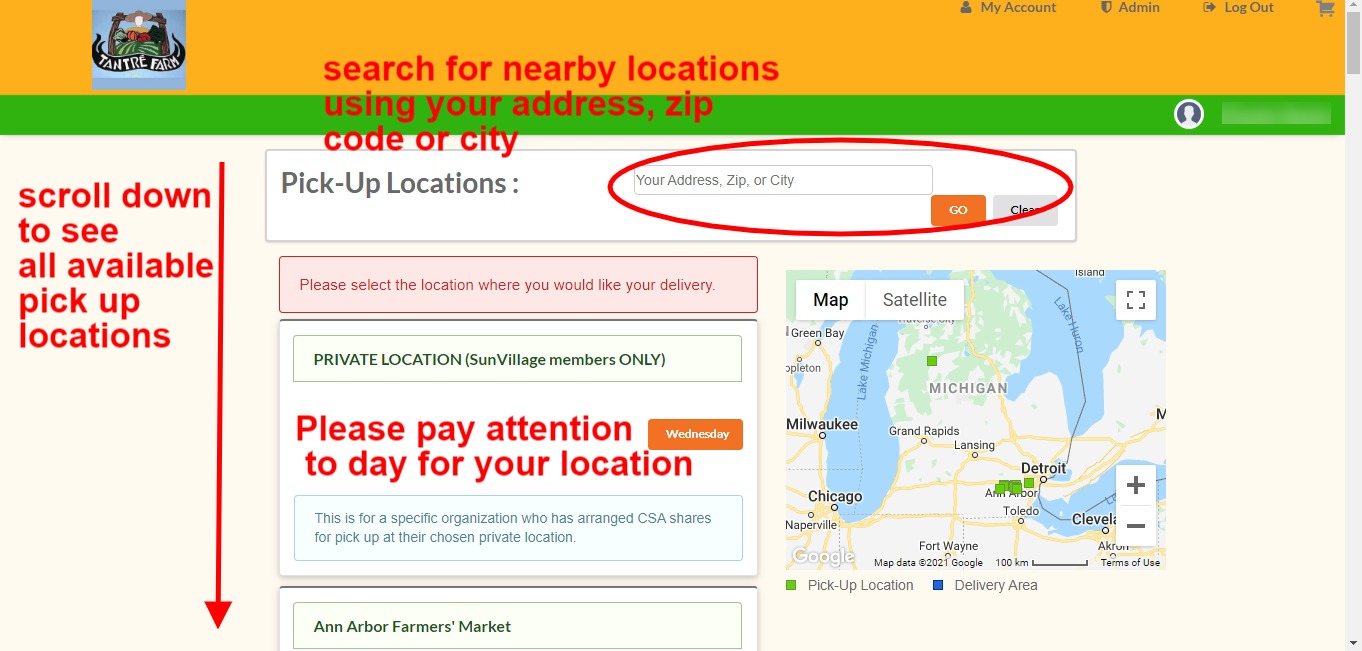
There are two options to change your pick up location. The first option is PERMANENT. Use this option if you chose the wrong pick up location when you purchased the Summer CSA, or if you would like to pick up in a different location for the rest of the year.
1. Select ”See what’s in my box/view calendar” then click “modify subscription”

Please note: when you use this option to change your pick up location, this change is permanent!
Click “save” to update your location change.
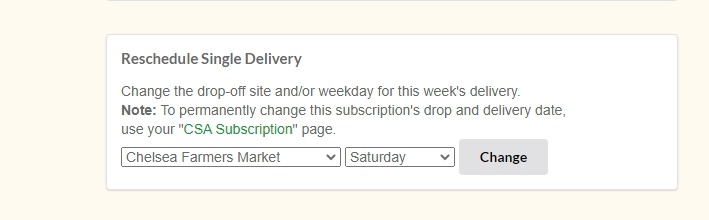
Use the following option to change one delivery (this is located at the bottom of the “See what’s in my box/view calendar” page):

When you reschedule a single delivery, your next scheduled delivery location will be changed, but then returns to your permanent location the following week. You may use this option to change your pick up location as many times as you need.You can see these changes reflected on your calendar. The green boxes indicate your scheduled pick up date. Click each date to see the location details.
Your current pick up location and date are displayed at the top of the page “See what’s in my box/view calendar”

Notice the legend below the calendar gives you an explanation for each color. Green is the current schedule for your Summer CSA. Look at the top of the page to verify your pick up location and date.
Deadlines
Please make all changes for changed pick up locations or holds for each week before Sundays at midnight. If you must make a last minute change or have an emergency that prevents you from picking up your box at the designated location/time after the deadline passes, please contact us immediately!
Vacation Holds
Please review the deadlines prior to making any changes.
If you are going on vacation, cannot reschedule pick up for another day, or need to miss a pick up for any reason, you have three options:
- Have Someone Else Pick Up Your Share: Please instruct them to use your name at pick up and share the details of your pick up location outlined in “Drop Point Details”. Make sure to give them the farm’s phone number or email address if they have a last minute change and can’t pick up the share. If you choose this option, no action is needed on your dashboard or otherwise.
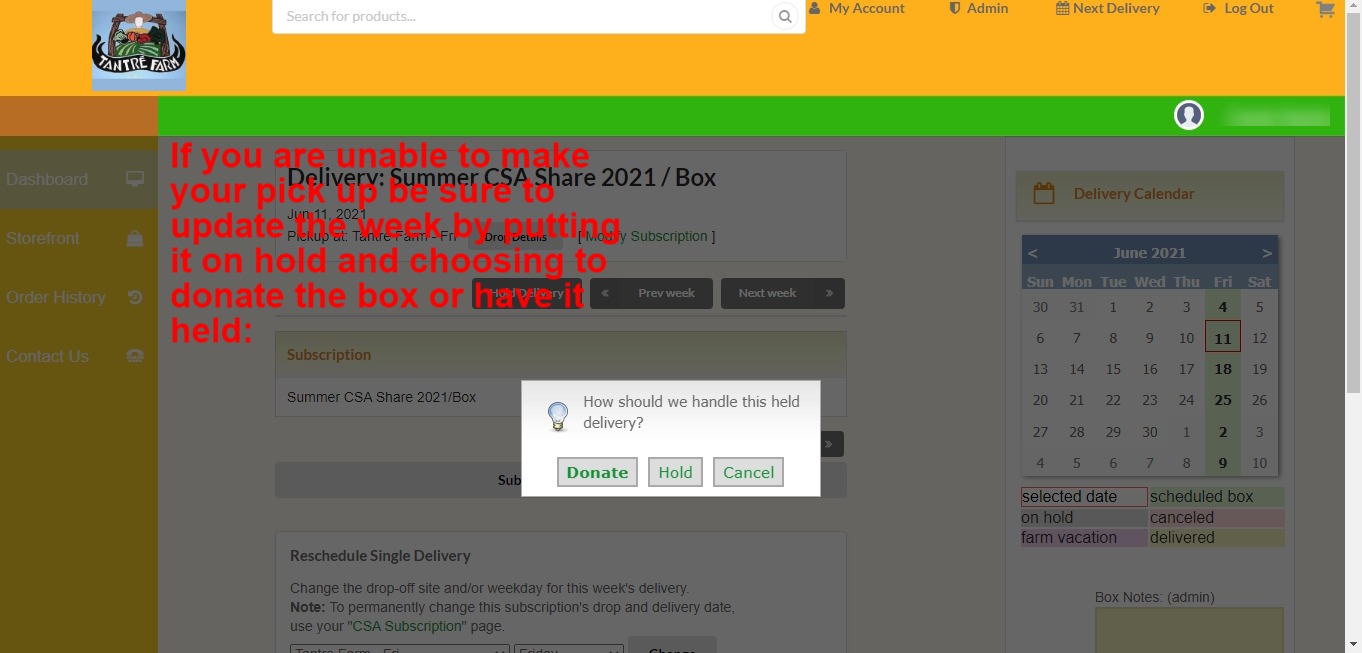
- Use Your Dashboard To Place A Hold On Your Delivery: Go to “See what’s in my box/view calendar” or use the “Place box on hold for a week” option under “My Subscriptions” on the dashboard. Click the button “Hold Delivery”:

This hold will apply to the date you have selected on the calendar. This date will turn gray when it is “on hold” as seen below. You will see the red “Hold” message under your subscription.

Choose “Hold Delivery” if you are unable to pick up your share that particular week.
3. You may choose to donate your share. When you use the “Hold” option you can click the “Donate” button:

All unclaimed and donated shares are given to needy families at Tantre Farm’s discretion.
Undo hold:
After a hold is placed, you will notice the “Hold Delivery” button changes to “Get Delivery”. Use this button to reinstate your regularly scheduled delivery, if you have changed your mind for some reason. Please make all changes before Sunday at midnight for the upcoming week.

Subscription Details
Your Dashboard allows you to view your box details, place holds, modify your subscription or drop point details.

Your Dashboard allows you to view your box details, place holds, modify your subscription or drop point details. Please see the Dashboard section for more details on each section.
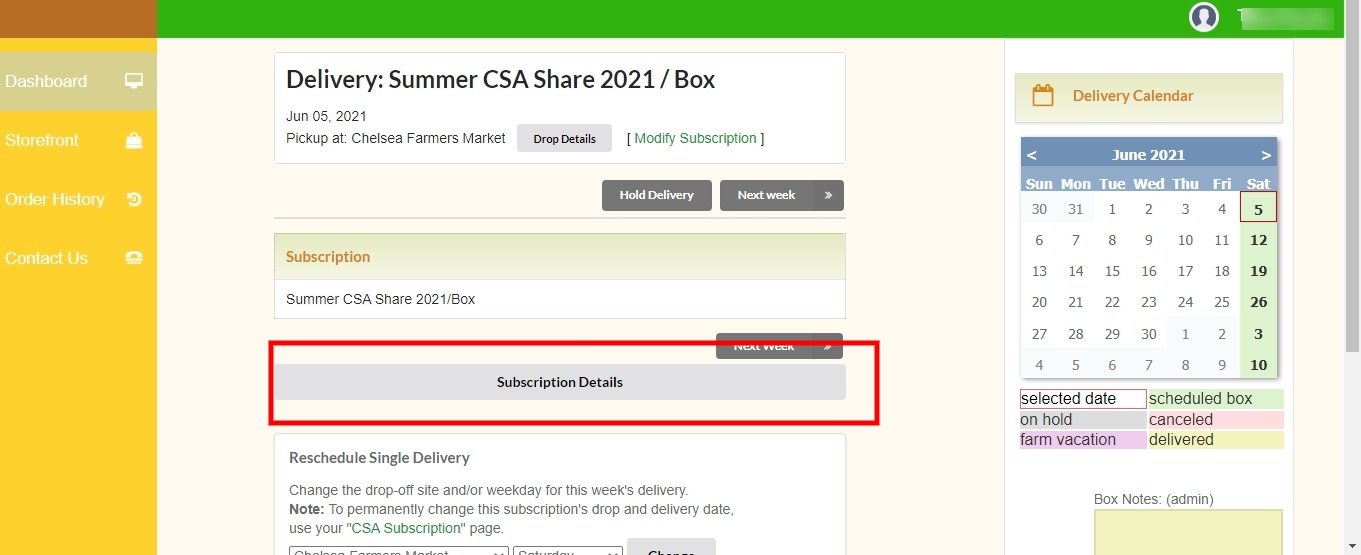
When you choose “See what’s in my box” on your dashboard, you can view your subscription details.
Back to top